Configuring an HBA's Firmware Values
Perform the following steps to edit the HBA's firmware configuration parameters:
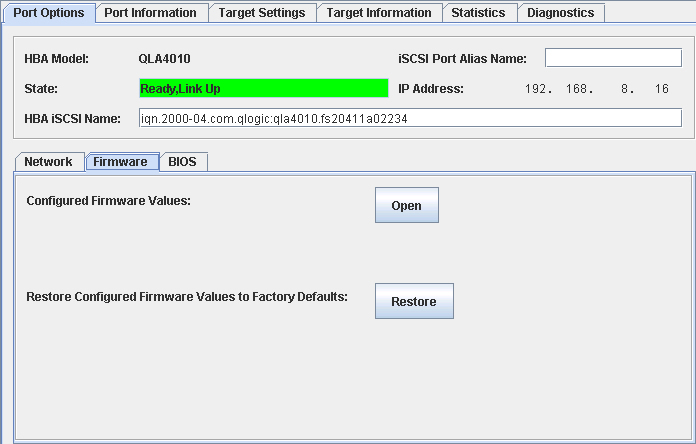
- In the SANsurfer iSCSI HBA Manager main window HBA tree, select the HBA, and then select the HBA port. On the Port Options tab, click the Firmware tab. The Port Options tabbed page (Firmware tab) displays (see the illustration below).
Port Options Tabbed Page (Firmware Tab)
The HBA port identifying information displays:
- HBA. HBA instance number and HBA model
- State. The HBA port state. See Monitoring the HBA Port State for details about the HBA port state and its correspondence with the HBA icons.
- Green background: good
- Yellow background: warning
- Blue background: unknown
- Red background: bad
- HBA iSCSI Name. HBA port iSCSI name. The QLogic manufacturing default name or a name that you assign.
- HBA Alias Name. HBA port iSCSI alias name. Symbolic name you assign to the HBA port for identification purposes.
- IP Address. IP address of the HBA port
- On the Firmware tab Configured Firmware Values option, click Open. A read-only table displays, listing all the firmware parameters and their current settings (see the illustration below). For detailed information about the firmware parameters, see the ISP4010 Firmware Interface Specification (see Related Documents).
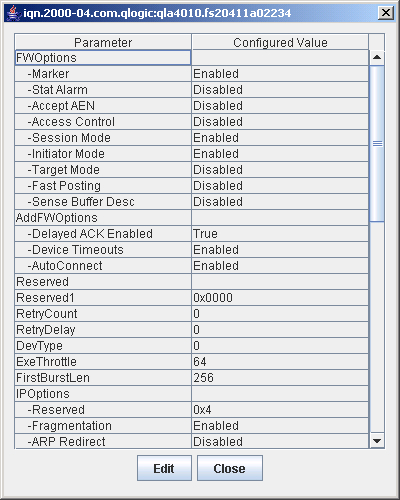
Firmware Parameters Table (Read Only)
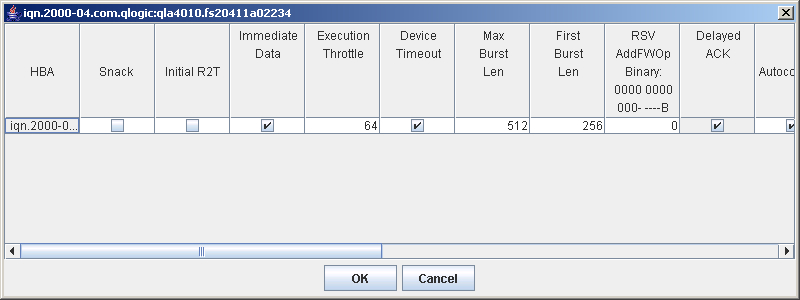
- To change a subset of these values, click Edit. A dialog box displays with the parameters that can be changed (see the illustration below).
Firmware Parameters Dialog Box
- Select and change the desired parameters, explained in the following paragraphs. To view the full name of the parameter, place the cursor on it. When you are done changing the parameters, click OK. If you want to exit the dialog box without changing the parameters, click Cancel.
The firmware parameters are as follows:
- Snack. When this check box is set and the firmware is configured as an initiator, the QLA4xxx HBA firmware sends SNACK requests to the target when it detects missing PDUs. When this check box is cleared and the firmware is configured as an initiator, the firmware aborts the command and/or closes the connection when missing PDUs are detected.
- Initial R2T. When this check box is selected, the QLA4xxx HBA negotiates (during login phase) for InitialR2T=yes. When this check box is cleared, initial R2T is disabled and the QLA4xxx HBA negotiates for InitialR2T=no.
- Immediate Data. When this check box is selected, the QLA4xxx HBA firmware negotiates (during login phase) for Immediate Data=yes. When this check box is cleared, immediate data is disabled and the firmware negotiates for ImmediateData=no.
- Execution Throttle. This column specifies the execution throttle value. The execution throttle is used by the QLA4xxx HBA firmware to limit the number of concurrently executing commands. Valid values are in the range 0-65535.
In target mode, this column is used by the QLA4xxx HBA to determine the MaxCmdSN (maximum command sequence number) to report to an initiator during a logged in iSCSI session.
In initiator mode, when this value is nonzero, the firmware limits the number of outstanding commands to the smaller of this value and the number of commands advertised by the target's MaxCmdSN value.
- Device Timeout. When this check box is selected, the QLA4xxx HBA firmware ignores the IOCB command timeout values specified by the host.
- MaxBurstLength. This column indicates the maximum length for data sequences the QLA4xxx HBA uses when negotiating with a device during login phase. This parameter indicates how many units (512 bytes/unit) of data the QLA4xxx HBA can send/receive. Valid values are in the range 0 to 32767 units (512 to 16 MB-1 bytes); a value of 0 indicates unlimited data units.
- FirstBurstLength. This column indicates the maximum length for unsolicited data the QLA4xxx HBA uses when negotiating with a device during the login phase. This parameter indicates how many units (512 bytes/unit) of unsolicited data the QLA4xxx HBA can send/receive. Valid values are in the range 0 to 32767 units (512 to 16 MB-1 bytes); a value of 0 indicates unlimited data units.
- RSVAddFWOpBinary. This field is used for debug and test purposes. Contact QLogic for more information.
- Jumbo Packets Enable. When this check box is selected, jumbo packets are enabled on an Ethernet network. This feature is not currently supported.
- Delayed ACK. This parameter determines what occurs when the QLA4xxx HBA receives a Data-In PDU with the Final bit set and no status reported. When this check box is selected, the QLA4xxx HBA sends a TCP acknowledgment immediately (this is the default value). When this check box is not selected, the QLA4xxx HBA delays the acknowledgment and waits for more data.
- Autoconnect. When this check box is selected, the QLA4xxx HBA will not attempt to autoconnect to the configured target devices at boot time. Instead, the host must issue Set Device Database Entry commands (0063h) to establish connections to targets.
- MaxOutstanding R2T. This column indicates the maximum number of outstanding R2Ts the QLA4xxx HBA uses when negotiating with a device during the login phase. This parameter indicates how many R2Ts can be outstanding on a SCSI task. Valid values are in the range 1-65535.
- Logout on Discovery Session. When this check box is selected, the QLA4xxx HBA initiates an iSCSI logout on a discovery session when discovery is complete (before closing the connection). When this check box is cleared, the QLA4xxx HBA closes the TCP connection when discovery is complete.
- Connection Keep Alive Timeout. This column indicates the time interval (in seconds) between connection keep-alive pings. When a connection is idle for the connection keep-alive timeout interval, the QLA4xxx HBA sends an NOP ping to the other device that is part of the connection. When the device responses to the ping, the connection remains open. When the device fails to respond, the QLA4xxx HBA closes the connection and informs the driver that the connection has gone down. The maximum keep-alive time is 18 hours.
- Ethernet Pause. When this check box is selected, the QLA4xxx HBA accepts pause frames from a connected device. In addition, the QLA4xxx HBA will issue an Ethernet pause to momentarily stop incoming traffic when the SDRAM is almost full. This feature is not currently supported.
- Header Digest. When this check box is selected, iSCSi headers with CRC protection can be transmitted. In addition, incoming iSCSI headers are validated and the CRC protection removed.
- Data Digest. When this check box is selected, iSCSi data with CRC protection can be transmitted. In addition, incoming iSCSI data is validated and the CRC protection removed.
- ARP Redirect. When this check box is selected, MAC addresses are discovered and bound to IP addresses for hosts to which the QLA4xxx HBA wants to talk.
- Error Recovery Level. When this check box is selected, the QLA4xxx HBA supports iSCSI error recovery level 0. At this level, the QLA4xxx HBA closes a connection if it detects any errors.
- Nagle. When this check box is selected, the QLA4xxx HBA supports the Nagle algorithm. Therefore, when a TCP connection has outstanding data that has not been acknowledged (ACKed), small data segments cannot be sent until the ACKs arrive. These data segments are collected by TCP and sent in a single segment when the ACKs arrive. This feature helps control congestion.
- TCP Timestamp. When this check box is selected, a timestamp is placed in every transmitted TCP segment. When the receiver responds with an acknowledge (ACK), the timestamp is included. Consequently, the transmitter can calculate the round trip time (RTT) of the ACK. This value is used in calculating retransmissions (if necessary). When this check box is not selected, RTT can only be calculated on one outstanding segment at a time (rather than on each segment).
- Strict iSCSI Login. When this check box is selected, the QLA4xxx HBA adheres to the iSCSI login rules, and therefore cannot operate with devices that do not conform to these rules. When this check box is not selected, the iSCSI login rules are relaxed, and the QLA4xxx HBA can operate with devices that do not conform to these rules.
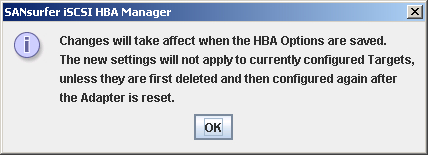
- The save firmware parameters message displays (see the illustration below). Click OK.
Save Firmware Parameters Message
NOTE: The revised settings do not apply to currently configured targets. To apply the revised settings to a configured target, you must delete and configure the target after the HBA is reset.
- The Firmware Parameters dialog box still displays. Click Close.
- Save the changes (the HBA automatically resets). Do one of the following:
- In the HBA Options tabbed page, click Save HBA.
- Right-click in the HBA tree. From the drop-down menu, click Save HBA.
- The Security Check dialog box displays. In the Enter Password box, type the password. Click OK.