Upgrading an HBA with New Firmware
If you are receiving a QLA4xxx HBA for the first time, the current version of firmware is already loaded. If you are upgrading a QLA4xxx HBA, follow the instructions in this section to load the latest firmware from the QLogic Web site.
The SANsurfer iSCSI HBA Manager HBA Information tab displays the current firmware version (see Viewing General HBA Port Information).
To obtain the new firmware, follow these steps:
- Obtain the new firmware. Locate the iSCSI firmware on the QLogic Web site (support.qlogic.com) and click Download.
- The File Download dialog box displays. Click Save. Specify a temporary location on the hard disk and download the file.
- In the temporary directory, locate the file, ql4xxx.dl. Double-click the file to extract it to a specified directory.
Perform the following procedures to upgrade the HBA firmware:
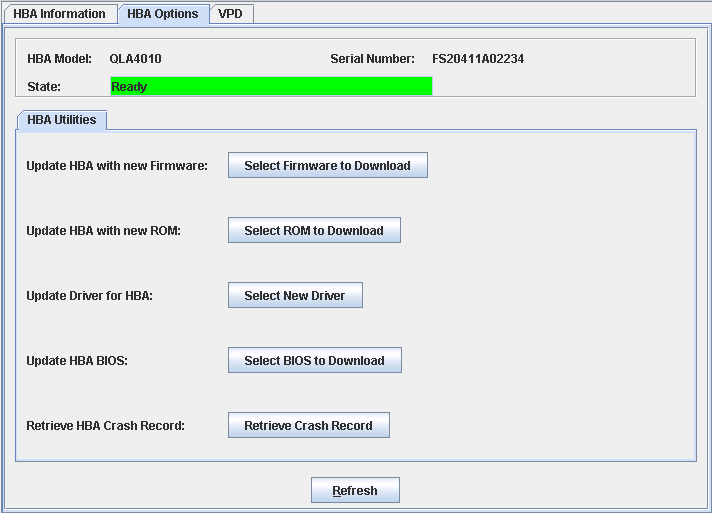
- In the SANsurfer iSCSI HBA Manager main window HBA tree, select the HBA port. Click the HBA Options tab. The HBA Options tabbed page (HBA Utilities tab) displays (see the illustration below).
HBA Options Tabbed Page (Firmware Tab)
The HBA port identifying information displays:
- HBA. HBA instance number and HBA model
- State. The HBA port state. See Monitoring the HBA Port State for details about the HBA port state and its correspondence with the HBA icons.
- Green background: good
- Yellow background: warning
- Blue background: unknown
- Red background: bad
- HBA iSCSI Name. HBA port iSCSI name. The QLogic manufacturing default name or a name that you assign.
- HBA Alias Name. HBA port iSCSI alias name. Symbolic name you assign to the HBA port for identification purposes.
- IP Address. IP address of the HBA port
- Click Select Firmware to Download.
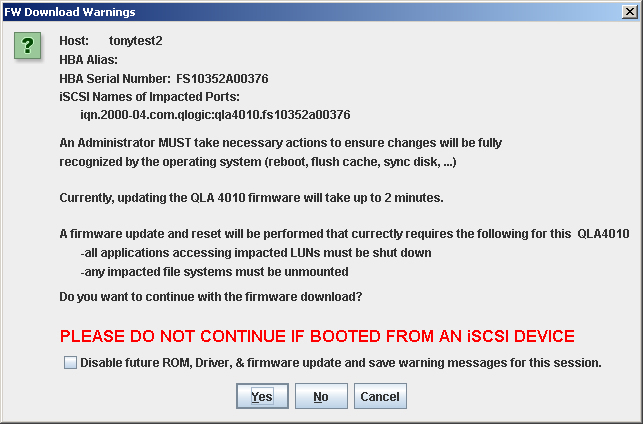
- The Firmware Download Warnings dialog box displays (see the illustration below). Read the information. If you want to continue, click Yes. Otherwise, click No or Cancel.
Firmware Download Warnings Dialog Box
NOTE: The new settings do not apply to currently configured targets. To apply the new settings to a configured target, you must delete and configure the target after the HBA is reset.
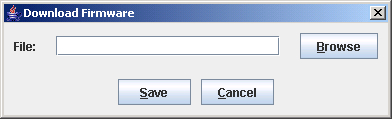
- The Download Firmware dialog box displays (see the illustration below). Click Browse.
Download Firmware Dialog Box
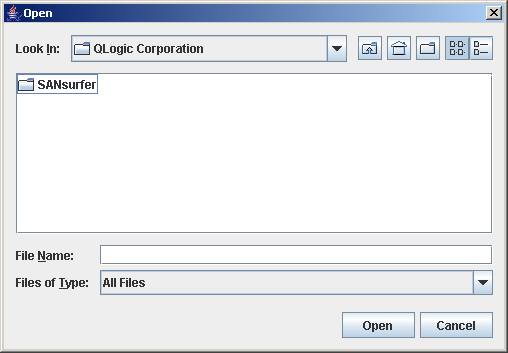
- The Open dialog box displays (see the illustration below). Select the firmware file that you downloaded previously, then click Open.
Open Dialog Box (Firmware)
- The file name displays in the Download Firmware dialog box. Click Save.
- The Security Check dialog box displays. In the Enter Password box, type the password. Click OK.
- The SANsurfer iSCSI HBA Manager main window status line flashes Current Operation: Upgrading FW until the upgrade is complete.
- Reboot the host PC for the operating system to recognize the new firmware.